Add additional aircraft to your owner profile
Your first aircraft was registered as part of account setup. To track another tail number, open your profile and run the same wizard again. The whole flow takes about a minute.
What you'll need
- The N-Number of the aircraft you want to add
- You should be the registered owner (or have permission to track it)
- Existing AZSuite login session
Step 1 — Open your profile
- Click your name/avatar in the top-right of any AZSuite page (or choose My Profile from the sidebar).
- You'll land on the profile page at
profile.php.
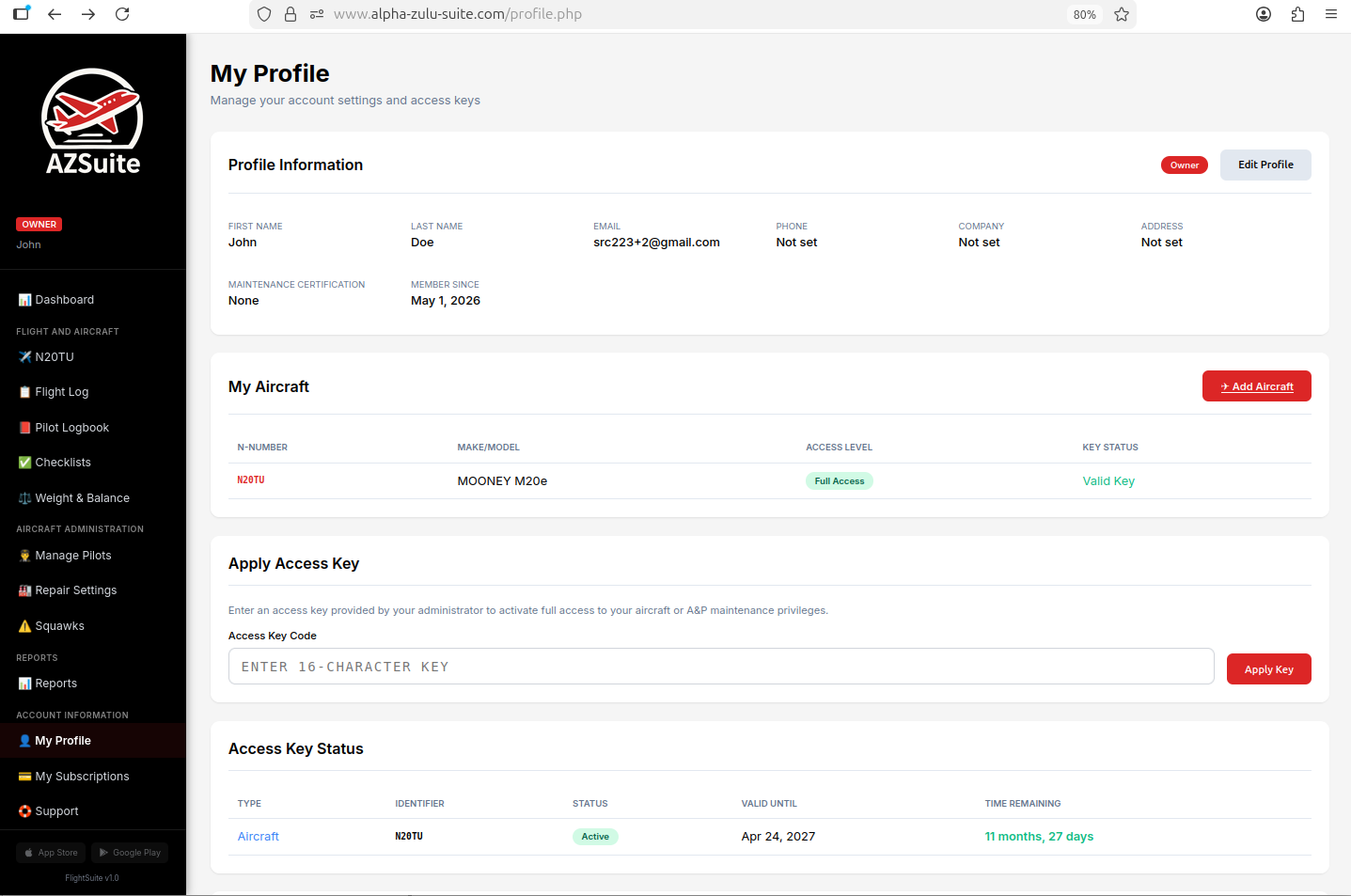
Step 2 — Find the "My Aircraft" section
Scroll down the profile page until you see the My Aircraft card. Aircraft already linked to your account appear in a small table here, with N-number, make/model, access level, and key status.

Step 3 — Click "✈ Add Aircraft"
In the header of the My Aircraft card, click the ✈ Add Aircraft button. AZSuite routes you to the registration wizard in add-another mode.
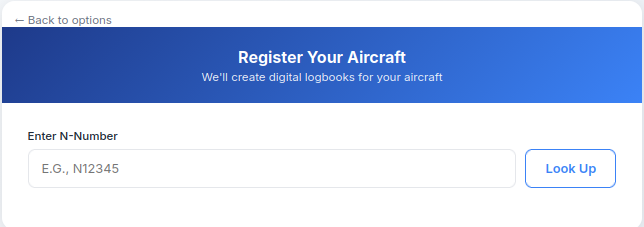
Step 4 — Enter the N-Number and look up the aircraft
- Type the N-Number of the new aircraft.
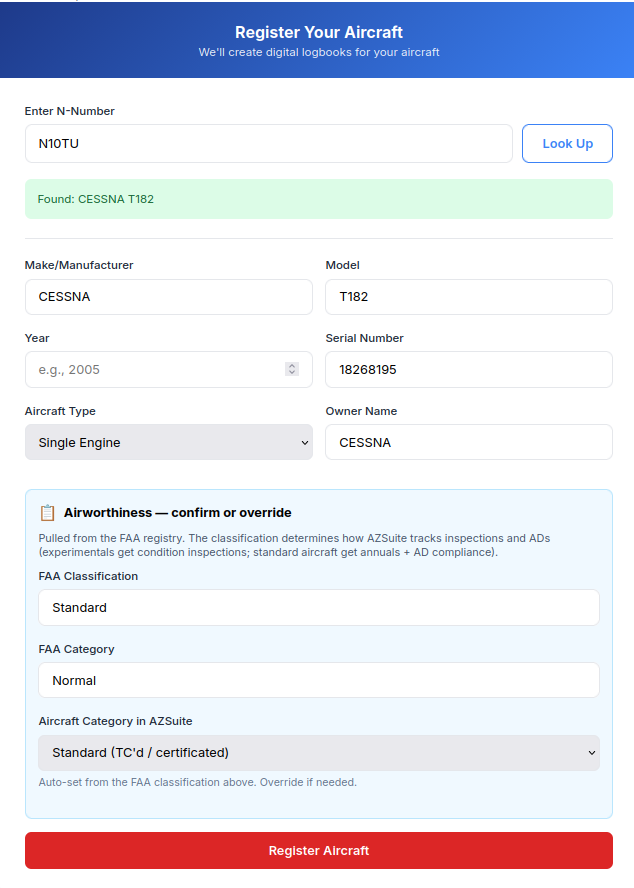
- Click Look up. AZSuite queries the FAA registry and auto-populates make, model, year, serial number, and registered owner.
📸 Screenshot: registration wizard with the N-Number entered and the "Look up" button focused.
Step 5 — Review and register
- Check the auto-populated fields. Correct anything the registry has wrong (it happens) and confirm the type and category.
- Click Register Aircraft.
Step 6 — Save the new aircraft access key
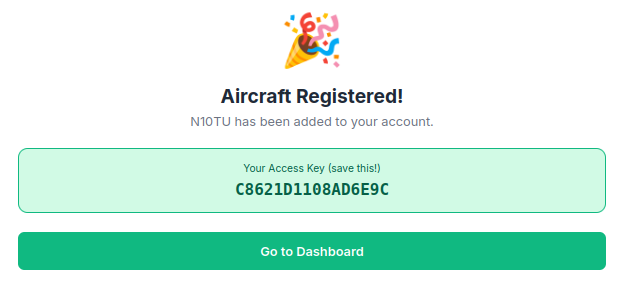
AZSuite generates a brand-new access key for this aircraft and displays it on screen.
Copy the key now
The access key is shown once. Copy it somewhere safe — each aircraft has its own key, and you'll need it to share access with mechanics, co-owners, or your flight school.
Step 7 — Verify it appears on your dashboard
After clicking Continue, you'll be returned to AZSuite. The new aircraft should now be visible in:
- the sidebar (its N-number listed alongside your other aircraft),
- the My Aircraft table on your profile, and
- the owner dashboard tile counts.
Troubleshooting
FAA lookup returned no results.
Confirm the N-Number is correct (no leading "N" needed — the wizard handles either form). The FAA registry occasionally has gaps for very recent re-registrations; if the lookup fails twice, click the Enter manually option and fill in make/model/serial yourself.
I'm not the registered owner — can I still add it?
You can register an aircraft you don't own (e.g., a club aircraft you fly), but your access level will start at read-only. The aircraft owner can grant you full access using the access key shown at the end of registration.
I already have this aircraft — can I add it twice?
No. AZSuite enforces a single record per N-Number across the platform. If you want to add yourself to an aircraft someone else already registered, ask them for the access key and use the access-key registration page instead.
Once added, head to Aircraft profile & photos to fill in engine, propeller, avionics, and gallery details for the new aircraft.