Set up your account
Before you can add an aircraft or log a single hour, you need an AZSuite account. This page walks you through the click-by-click setup as an aircraft owner — from requesting access to landing on your dashboard for the first time.
Limited access release
AZSuite is currently in a limited access release. The first step below asks you to request a registration code. Once you have one, the rest of the flow takes about three minutes.
Step 1 — Request access
- Go to alpha-zulu-suite.com.
- Click Contact in the top navigation, or open the Contact form directly.
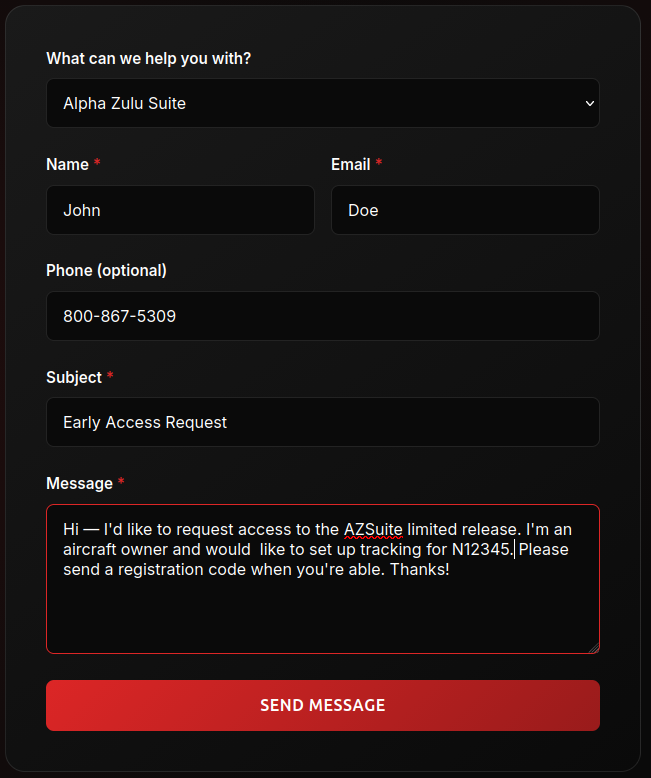
- Choose Alpha Zulu Suite as the inquiry type and let us know you'd like to be added to the limited access program. Please include the N-number(s) of the aircraft you intend to track.
- We'll reply with a one-time registration code for you to use in the next step.
Sample message
Hi — I'd like to request access to the AZSuite limited release. I'm an aircraft owner and would like to set up tracking for N12345. Please send a registration code when you're able. Thanks!
Step 2 — Create your account
- Open the registration page (or click the link in the welcome email we send you).
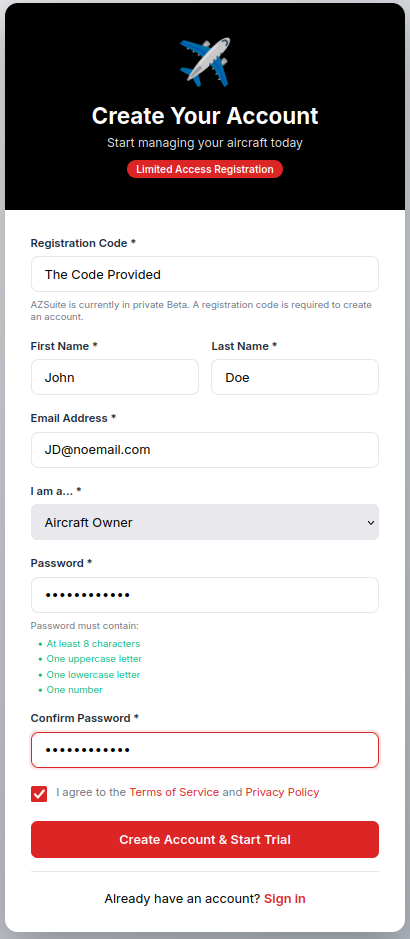
- Paste the registration code from the welcome email into the Registration Code field.
- Enter your first name and last name as they should appear in logbook signoffs.
- Enter the email address you'd like to use as your login. This is also where verification, AD alerts, and inspection reminders will go.
- From I am a… choose Aircraft Owner. (You can wear additional hats later — owners who also fly will still see pilot tools.)
- Choose a password. AZSuite requires:
- at least 8 characters
- one uppercase letter
- one lowercase letter
- one number
- Re-enter the same password in Confirm Password.
- Tick the box agreeing to the Terms of Service and Privacy Policy.
- Click Create Account.
Step 3 — Verify your email
After registering you'll be sent to a Check Your Email confirmation page, and AZSuite will send a verification message to the address you used.
- Open your inbox and find the email titled "Verify your AZSuite account." (Check spam if it's not in your inbox within a minute.)
- Click Verify Email inside the message. The link is valid for 24 hours.
- You'll be redirected back to AZSuite with a green confirmation banner.
Verification link expired?
If you waited more than 24 hours, click Resend verification email on the login page (or visit resend_verification.php) to get a fresh link.
Step 4 — Sign in for the first time
- Go to the Sign In page.
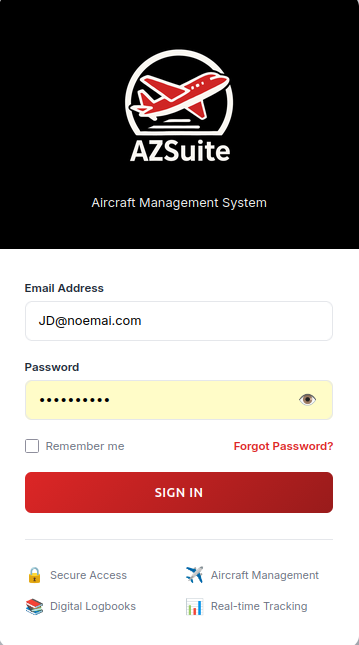
- Enter the email and password you just created.
- Click Sign In.
Step 5 — Add your first aircraft (onboarding wizard)
The first time an owner signs in, AZSuite skips straight to the onboarding wizard, which is also the add-aircraft form. You'll need the tail number of the aircraft you'd like to track.
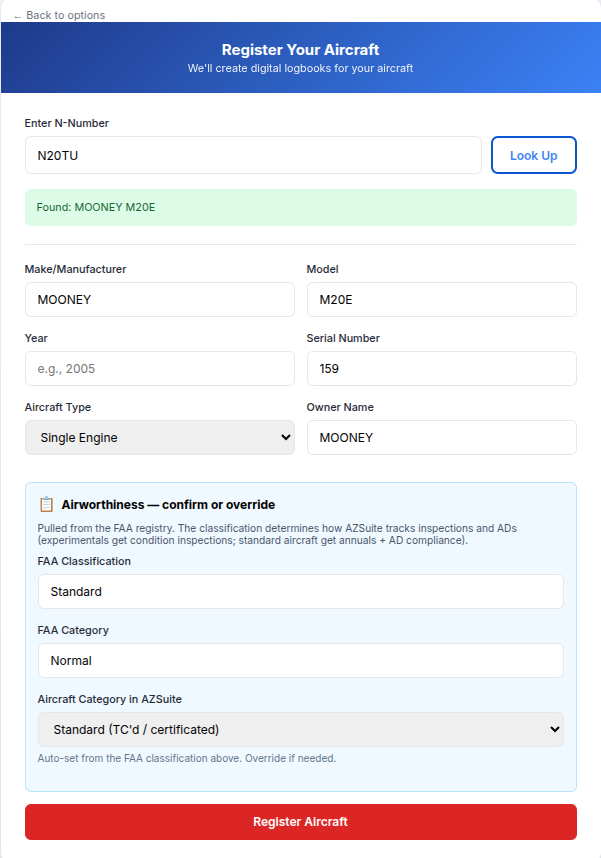
- Enter the N-Number of your aircraft and click Look up. AZSuite queries the FAA registry and auto-populates make, model, year, serial number, and registered owner.
- Review the populated fields. Correct anything the registry has wrong (it happens) and confirm the type (single-engine, twin, helicopter, etc.) and category (standard, experimental, light-sport, etc.).
- Click Register Aircraft.
Step 6 — Save your aircraft access key
After the aircraft is registered, AZSuite generates a unique aircraft access key and displays it on screen. This key is what you'll share if you ever want to grant another AZSuite user (a mechanic, a co-owner, a flight school) access to this aircraft's records.
Copy the key now
The access key is shown once. Copy it somewhere safe before you continue — you can regenerate one later from your profile, but the original cannot be retrieved.
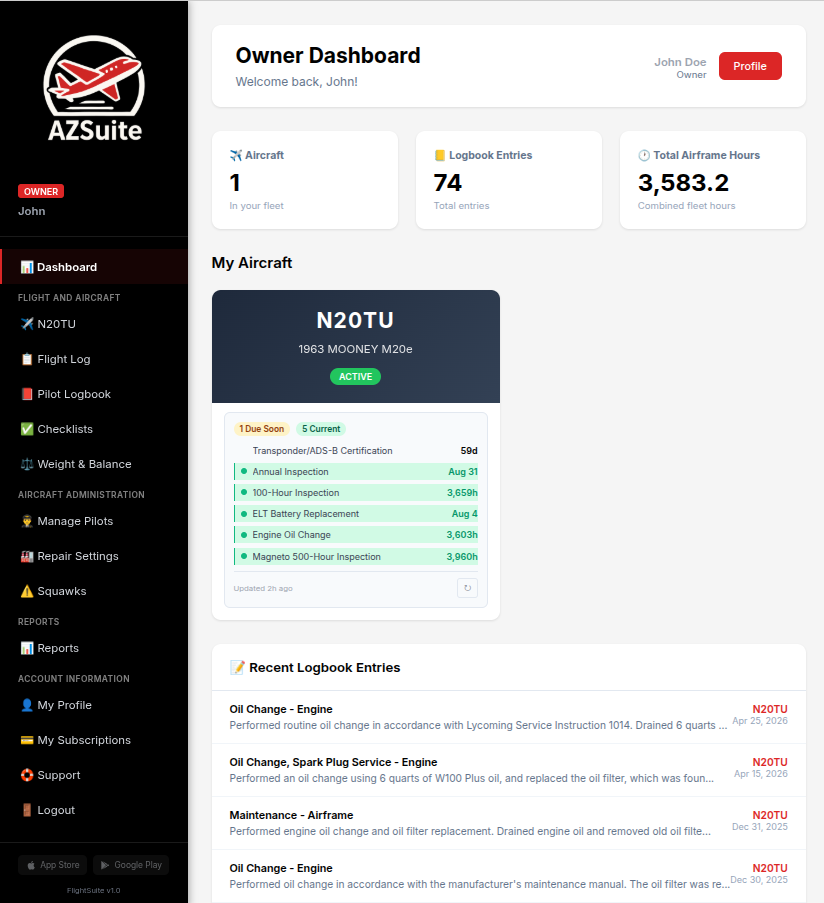
After you've copied the key, click Continue and AZSuite will redirect
you to your owner dashboard at
owner_dashboard.php,
with the aircraft you just registered already attached.
What's next?
Add another aircraft Aircraft profile & photos
Troubleshooting
I never got the verification email.
Wait two minutes, then check spam/junk. Still nothing? Visit resend_verification.php and we'll send a new link. If your address is mistyped, you'll need to register again — accounts cannot change email until verified.
My registration code says it's invalid.
Codes are single-use and tied to the email we sent them to. Make sure you're entering it exactly (no leading/trailing spaces) and that the email field matches the address that received the code. If it still fails, contact support.
I picked the wrong user type.
No problem — sign in, open your Profile, and we can switch your primary role. Some roles (A&P, repair facility admin) require verification, so contact support to make those changes.
Once you've finished setup, if you need to add another aircraft, continue to the Add another aircraft step.